
Target Collab Cleanup & Editing
Bulk-remove stale Target Collab invites to get out of invite jail, bulk-edit existing invites in place (commission rates, expiration dates, free-sample rules), or export matching invites with their products and creators to a CSV.
The short answer
Target Collab Cleanup (Outreach → Automations → TC Invite Cleanup) is Cruva's bulk tool for the Target Collab invites already sitting in your TikTok Shop. It has three modes:
- Invite Removal deletes stale, unaccepted invites so your store stops hitting TikTok's active-invite cap and your outreach keeps flowing.
- Invite Editing changes existing invites in place. Filter down to the invites you mean, then update their commission rates, expiration date, or free-sample rules. Nothing is deleted.
- Invite Export matches invites the same way and downloads them as a CSV, with each invite's rates, expiration, products, and creators. Nothing on TikTok is changed.
All three run in the background on your shop and produce a downloadable file when they finish.
Why this matters
A few numbers to know:
- Most stores: 1,000 active Target Collabs total. Some brands have this limit lifted, up to 10,000.
- Each Target Collab invite can include up to 50 creators. Some brands have this raised to 100.
- Invites expire, so your active count drifts down over time on its own, but usually not fast enough to keep up with active outreach.
When your store is at or near the limit:
- New invites fail. You can't send any more Target Collabs until the count drops.
- Outreach messages can fail. A store bloated with old invites is a common cause of failed messages in your automations.
- Your automations pause. When a store hits the invite limit, Cruva automatically pauses its automations and surfaces a banner on the Outreach Automations page: "Your store is at its maximum invite limit." Running the cleanup (or resuming an automation once space is free) lifts this message.
And separately from the cap: an invite's terms are locked in the moment it goes out. If you sent 300 invites with the wrong commission or with sample auto-approval switched on, every one of them is live with those terms until you change them. That is what Invite Editing is for.
How to run it
Go to Outreach → Automations → TC Invite Cleanup.
Click Run TC Invite Cleanup.
At the top of the popup, pick a mode: Invite Removal, Invite Editing, or Invite Export. Configure the options for that mode (all three are explained below), click the button at the bottom, and confirm.
How long it takes
A run can take anywhere from a few minutes to a few hours, depending on how many invites your store has. Removal is quick per invite; editing and exporting have to read each matched invite back from TikTok, so a large store with broad filters takes longer.
While a run is in progress, no other automations on that shop will send. They resume automatically when the run finishes. Pick a quiet moment for big runs.
Logs
When a run finishes, the Invite Cleanup Logs panel in the popup lists a downloadable CSV for it, labelled Removal, Edit, or Export. Removal logs list every invite that was deleted. Edit logs list every invite that was changed, what changed on it, and any invite the update failed on with the reason. Export files are the export itself (see Invite Export).
Invite Removal
This is the original cleanup. It terminates whole invites that nobody accepted.
What the default removal does
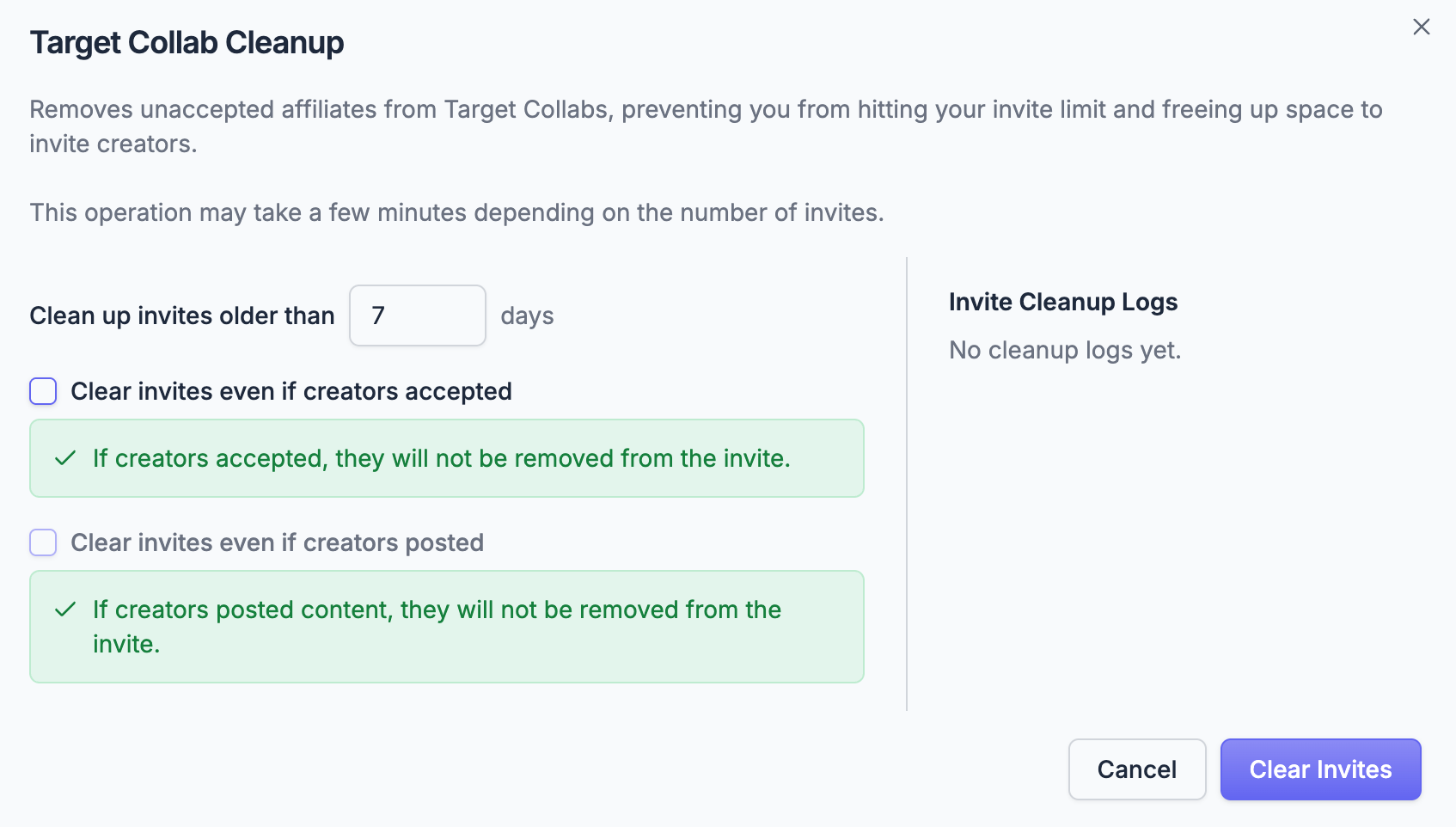
- Deletes any Target Collab where zero creators accepted and zero creators posted. These invites are pure dead weight.
- Leaves every other invite alone. An invite with even one acceptance or one piece of posted content is preserved in full. Removal works on whole invites, so accepted creators are never touched by a default run.
Removal options
Clean up invites older than X days (default: 7). Only invites older than the threshold are touched. This protects your recent outreach: if you just sent a wave of invites and cleared them immediately, those creators would lose the ability to accept and request samples. Leave a buffer so fresh invites get a fair chance to convert.
Clear invites even if creators accepted. Some shops end up in a frustrating spot: nearly every invite has one or two acceptances, so the default cleanup can't delete them, and you're still stuck at 1,000 invites with a couple of accepted creators in each. When this is enabled, an acceptance is no longer enough to preserve an invite. Only invites where a creator has posted content (a video or a LIVE) are preserved. Everything else is cleared.
⚠️ Use with care. Clearing an invite where a creator has accepted can change their commission, remove them from your showcase and content, or lead to other unexpected behavior. Weigh this before enabling.
Clear invites even if creators posted. The most aggressive option: clears invites regardless of acceptance or posted content. This option is currently disabled in the platform due to the risks it carries.
Narrowing a removal run
The Which invites section lets you limit a removal to a subset of your invites. Leave it empty to consider every eligible invite.
- Invite title. Only invites with one of these exact titles are considered. Pick an automation to add the title it sends with, or type a title by hand. Add as many as you like.
- Products. Only invites that contain at least one of the selected products are considered.
A useful pattern: one campaign went badly and you want its unaccepted invites gone without touching anything else. Add that campaign's invite title and run a removal.
Which removal setting should I use?
- Default run (no checkboxes): Start here. For most stores, clearing zero-acceptance invites frees plenty of space with no risk to active relationships.
- "Clear invites even if creators accepted": Use when a default run barely moves your invite count because most invites have a stray acceptance or two. Understand the commission and showcase risks first.
- "Clear invites even if creators posted": Not currently available.
Invite Editing
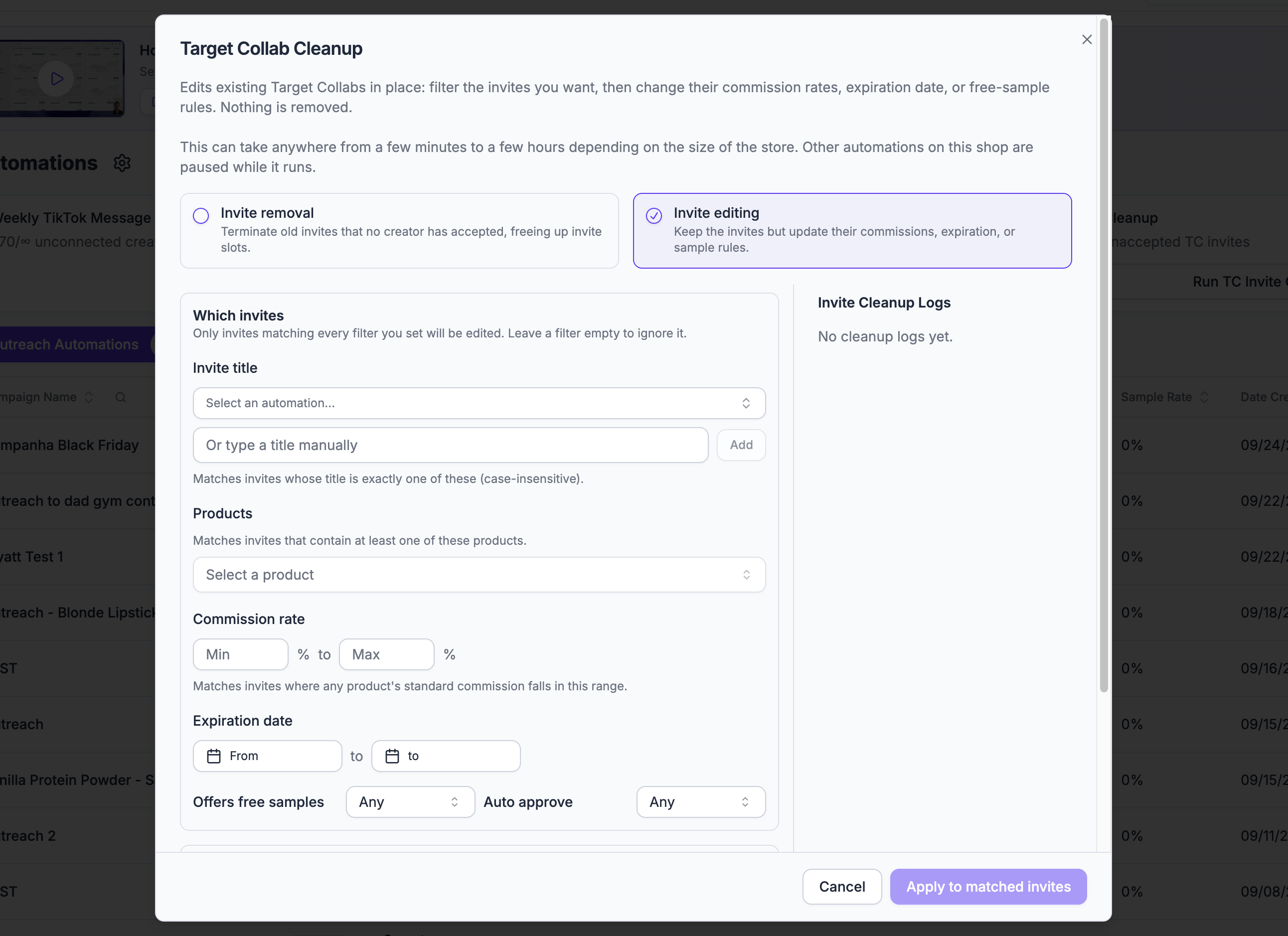
Invite Editing rewrites the invites you select without removing anything. Creators stay on their invites, products stay attached, the message and contact details stay as they are. Only the fields you choose to change are changed.
It works in two steps, which map to the two sections of the popup.
Step 1: Which invites
Start by choosing a lookback: only invites updated in the last X days are considered, and 30 days is the recommended default. For bigger stores, the longer the lookback, the longer the run takes, because every invite in the window has to be read back from TikTok before it can be edited.
Then set your filters. Every filter you set must match for an invite to be edited. Leave a filter empty and it is ignored. Leave all of them empty and the changes apply to every active invite in the lookback window; the popup warns you in that case, so you won't do it by accident.
- Invite title. The invite's title must be one of the titles in the list. Choose an automation to add the invite title it sends with, or type one manually. This is the easiest way to target one campaign's invites.
- Products. The invite must contain at least one of the selected products.
- Commission rate. At least one product on the invite must have a standard commission inside the range you give. Set just a minimum, just a maximum, or both.
- Expiration date. The invite must expire inside the date range. Useful for catching invites that are about to lapse.
- Offers free samples. Yes, No, or Any.
- Auto approve. Whether the invite auto-approves free-sample requests. Yes, No, or Any.
- Include creators. The invite must contain at least one of these creators. Type or paste handles (with or without the @, commas or new lines between them), or upload a CSV with a handle column. The popup shows how many handles it recognised.
- Exclude creators. Any invite that contains one of these creators is skipped, even if everything else matches. Same input options as Include.
Not the same as Cruva's Auto Review. Auto approve on a Target Collab invite is a TikTok setting: every sample request from that invite is approved instantly, no conditions. Cruva's Auto-approve (Auto Review) runs on a schedule and approves only requests that meet rules you set. This filter and the free-sample action change the TikTok setting only.
Some examples:
- Every invite from the "Spring Launch" automation that has auto approve on.
- Every invite containing product X with a commission under 15%.
- Every invite expiring in the next 14 days.
- Every invite that includes one of a list of VIP creators, so their rates can be raised in one go.
- Every invite from a campaign except the ones holding creators you've already renegotiated with, using Exclude creators.
Step 2: What to change
Tick one or more actions. Each is applied to every matched invite.
Update commission rates. Set a new standard commission and, optionally, a new Shop Ads commission. Rates are 1% to 100%. There are two scopes:
- Apply to all products. An invite can carry several products. The rates you enter are applied to every product on each matched invite. Leave either rate blank to keep the invite's current value for it.
- Apply to specific products. Add products and set a rate for each. If a matched invite contains any of those products, those products' rates are updated and the invite's other products keep theirs. An invite that contains none of the listed products is not touched at all, not even by the other actions you ticked in the same run.
Change expiration date. Pick a new date; every matched invite will expire at the end of that day. This only moves dates later. TikTok does not allow an invite's expiration to be shortened, so a matched invite that already expires after the date you pick is left unchanged and listed as skipped in the log. To end a campaign early, use Invite Removal instead.
Change free-sample rules. Turn free samples on or off, and choose whether sample requests are auto-approved. Turning free samples off also turns auto-approval off, since it has nothing to apply to.
Is editing safe?
Editing never adds or removes creators, products, or invites, so there is no "invite jail" risk and no creator loses their place. If you edit something incorrectly, run another edit to put it back. Two things to keep in mind:
- Commission changes take effect immediately for accepted creators. Anything they sell between a mistaken edit and your correction earns the rate that was live at the time.
- Expiration dates can only be extended. TikTok ignores a shorter date, so an edit can never make an invite lapse sooner than it already would.
The edit log records the previous and new expiration and sample rules for every invite it touched, so you always have a record of what a run did.
Invite Export
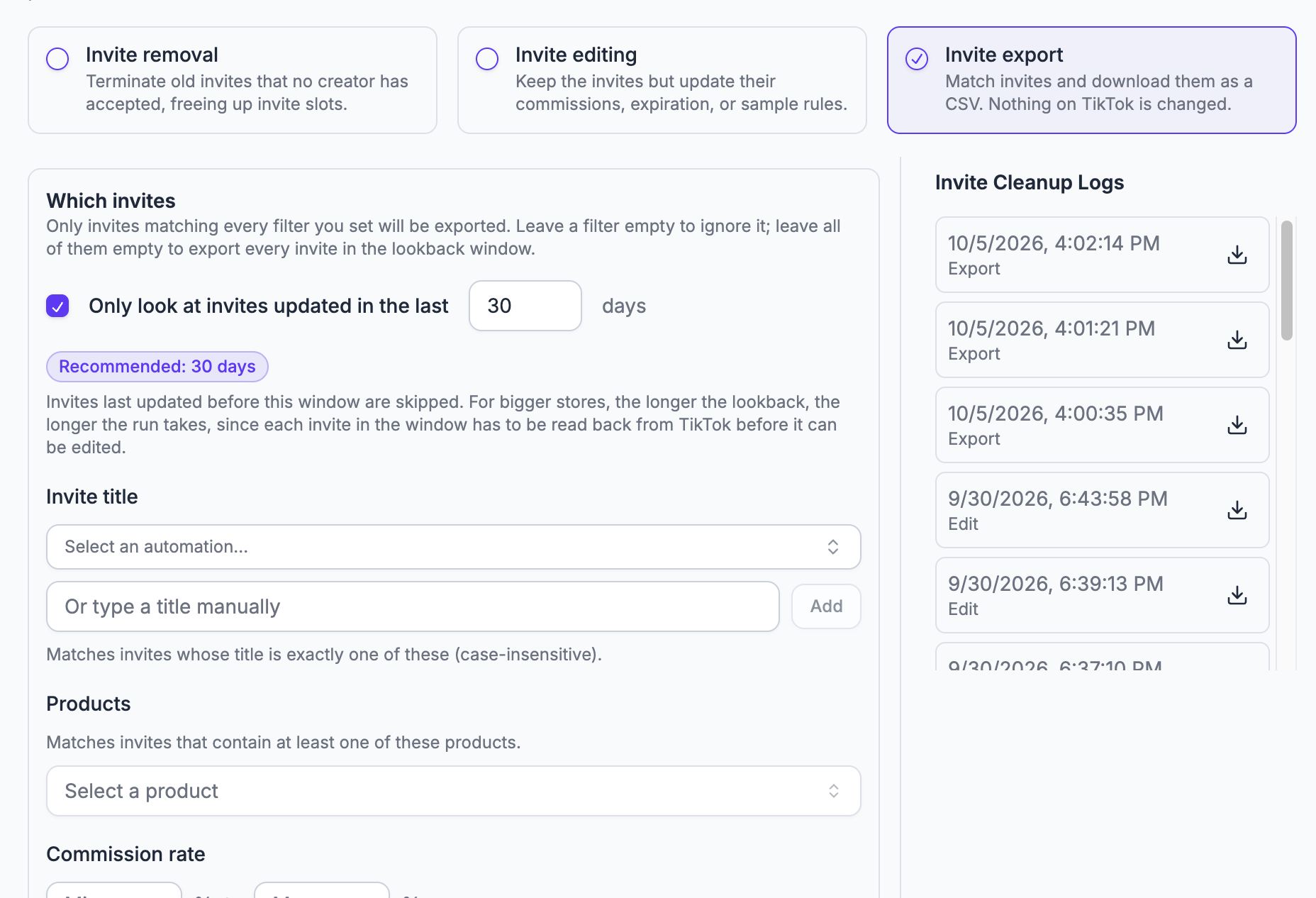
Invite Export is the read-only sibling of editing. It uses the same lookback and the same filters as Invite Editing, including Include and Exclude creators, but there is no "What to change" section. Every invite that matches is written to a CSV, and nothing on TikTok is touched.
What's in the file
One row per matched invite:
- Invite id and title.
- Commission rates and Shop Ads commission rates: the distinct rates across the invite's products, in percent.
- Expires at, created at, and last updated at.
- Products: one entry per product in the form
Title (product id) 43% / ads 42%, separated by|, plus a product count. - Creators: every creator handle on the invite, comma-separated, plus the creator count and how many have accepted and posted.
- Offers free samples and auto-approves samples.
How to run it
- Open TC Invite Cleanup and choose Invite Export.
- Set the lookback (30 days is recommended; untick the box to scan every invite regardless of date).
- Set any filters, or leave them all empty to export everything in the window.
- Click Export matched invites and confirm.
The file appears in the Invite Cleanup Logs panel labelled Export when the run finishes. Like the other modes, the run pauses the shop's other automations while it collects the invites and can take a while on a large store.
What it's useful for
- Audit before you edit. Run an export with the exact filters you plan to use for an edit, open the CSV, and confirm it caught the invites you expect before changing anything.
- Find where a creator sits. Include a creator's handle and export: every invite they're on, with its rates and expiry, in one file.
- Hand rates and expiries to someone else. Finance, a brand partner, or a spreadsheet, without giving them Seller Center access.
I sent invites with auto-approve on by mistake. What now?
This is exactly what Invite Editing is for, and it is the fastest fix.
To be clear about which setting we mean: this is the "Auto-approve free sample requests" checkbox on the invite step of an outreach automation. It tells TikTok to approve every sample request from that invite on sight. If what you actually want is conditional approval, that is Cruva's Auto-approve (Auto Review) feature, and the fix below is still the right first step: turn off TikTok's blanket approval on the invites, then let Cruva's rules decide which requests go through.
- Open TC Invite Cleanup and switch to Invite Editing.
- Under Which invites, add the invite title from the automation that sent them (choose the automation from the list) and set Auto approve to Yes. That limits the run to that campaign's invites that actually have auto-approval on.
- Under What to change, tick Change free-sample rules, leave Offer free samples on, and untick Auto-approve free sample requests.
- Click Apply to matched invites and confirm.
Every creator on those invites keeps their invite; sample requests from now on just land in your queue for review instead of being approved automatically.
Do this as soon as you notice. The edit only affects requests that come in after it runs. Any sample that TikTok already auto-approved stays approved: the creator has been told their sample is on the way, and cancelling it after the fact means going back on a commitment, which damages your brand's reputation with that creator and anyone they talk to. The sooner the setting is turned off, the fewer samples go out before you've had a chance to review them, so run this the moment you realise an automation went out with the box ticked rather than waiting for the requests to pile up.
The same recipe covers the other common mistakes:
- Wrong commission on a launch. Filter by the automation's invite title, tick Update commission rates, apply the correct rate to all products.
- Invites about to expire on a campaign that's still working. Filter by Expiration date for the next week or two, tick Change expiration date, pick a date further out.
- A product's rate needs to change everywhere. Leave the title filter empty, tick Update commission rates, choose Apply to specific products, add the product with its new rate. Only invites carrying that product are touched, and only that product's rate changes on them.
The alternative: re-invite with resolution
There is a second way to correct invite terms: create a new automation with the right settings and target the same creators again. At the bottom of Step 3 in the automation builder, under Auto Resolve Conflicts, choose Resolve all creators. TikTok doesn't let a creator hold two invites for the same product, so Cruva moves each creator out of their old invite and into the new one with the new terms. Creators who had already accepted don't need to accept again. See Invite Conflict Resolution for the details.
Either approach works. Invite Editing is quicker and more encompassing: it touches every matched invite in one run, needs no new automation, no creator list, and doesn't spend any of your daily sends. Re-inviting makes sense when you also want to change the invite message or the product line-up, which editing doesn't cover. Remember that editing pauses the shop's other automations while it runs, whereas a new automation runs alongside the rest.
Common problems
"My automations stopped and I see 'Your store is at its maximum invite limit.'" Your store hit its Target Collab cap and Cruva paused your automations. Run an Invite Removal to free up space, then resume your automations. Either action clears the banner.
"My outreach messages keep failing." A store at or near its invite limit is one of the most common causes. Run a removal and retry.
"I ran the cleanup but my invite count barely dropped." Your invites likely each have a small number of accepted creators, which the default removal preserves. Consider the "Clear invites even if creators accepted" option, after reading the risks above.
"My other automations aren't sending." Check whether a cleanup or edit run is in progress; the TC Invite Cleanup menu item shows a spinner while one runs. Automations resume on their own when it finishes.
"My edit run changed fewer invites than I expected." Every filter must match. Check the title is spelled exactly as the automation sends it (picking the automation from the list avoids typos), remember that Apply to specific products skips invites that don't contain any of the listed products, and check the lookback covers the invites you mean. The edit log shows what was changed and anything that failed. When in doubt, run an Invite Export with the same filters first and look at what it catches.
"The export is empty or missing invites." Same checks as above: the lookback window, exact titles, and whether an Include or Exclude creators list is narrowing it more than intended. Handles are matched on the creator's TikTok username, not their display name.
"Will cleaned-up creators be lost forever?" No. Removing an unaccepted invite frees those creators to be invited again. Check the logs in the popup for a full list of what each run removed.
"Can I raise my limits instead?" Some brands have the 50-creators-per-invite limit lifted to 100, and the 1,000 active invite cap lifted as high as 10,000. These are TikTok Shop-side limits, not Cruva settings.
Was this article helpful?
Related articles
- Outreach Setup and Best PracticesA complete walkthrough of automations: how to find the right creators, automate every touchpoint of the affiliate lifecycle, and turn one-off collabs into a community that prints content.
- Find creators with AI SearchDescribe the creator you want in plain English, then add the matches to a list and launch outreach.
- Managing listsBuild, upload, enrich, share and target saved creator lists — how matching works, how to read the upload summary, and why some handles don't match.
- Email campaigns: setup, reconnecting, and deliverabilityConnect Gmail, Outlook, SMTP, or verify a custom sending domain; fix 'Permission Issue'/reauth and 'no email found'; understand the 60/day limit and why your sent mail lands in Sent, not Inbox.
- All About Email CampaignsFor operators running (or trying to start) email outreach to creators from their own mailbox.
- Finding and managing creators (My Affiliates, AI Search, Lists & Groups)How to browse your affiliate roster, search for new creators with AI, upload creator lists, and build dynamic groups you can point an automation at.